> ## Documentation Index
> Fetch the complete documentation index at: https://docs.getnativeflow.com/llms.txt
> Use this file to discover all available pages before exploring further.
# Media Assets
> A project-level media library — built-in stock images, an upload area, and a type filter for images, videos and animations.
## Overview
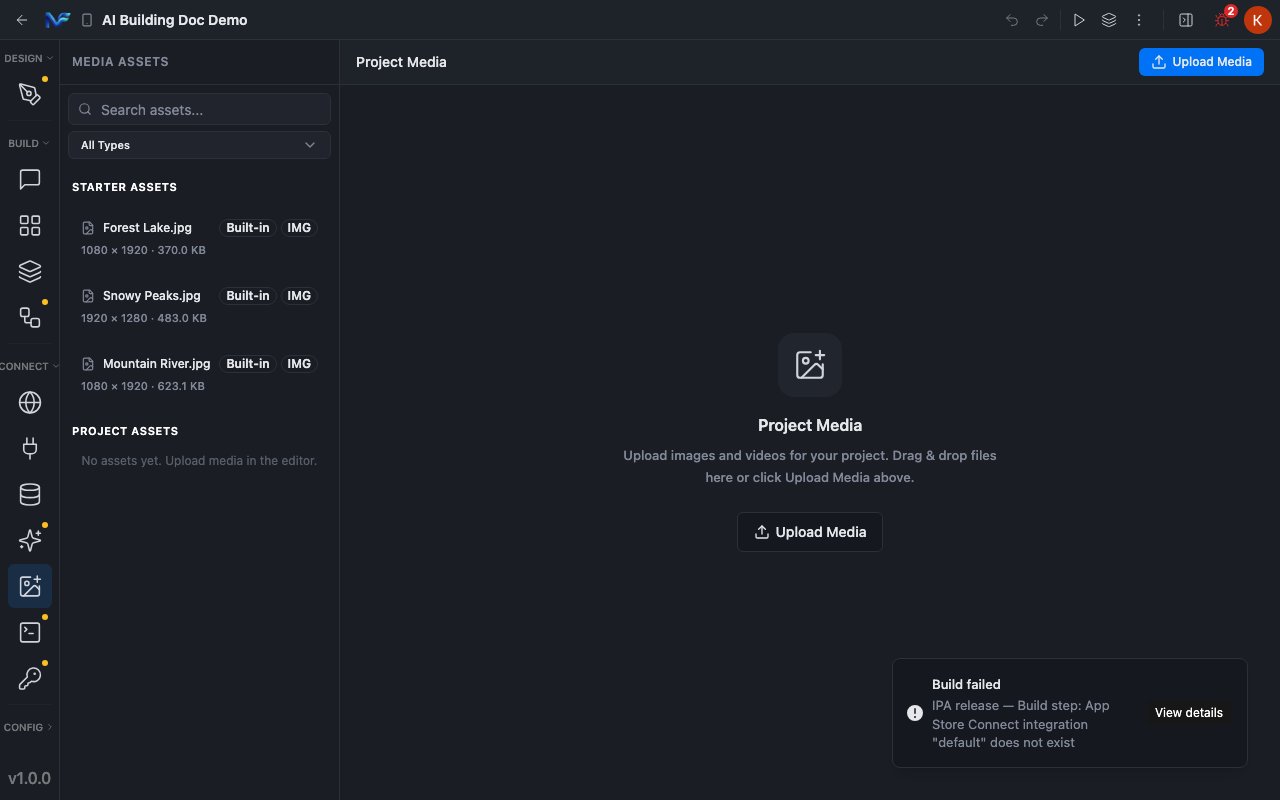
**CONNECT → Media Assets** is a project-level media library: a set of built-in stock images every project starts with, plus an upload area for your own images and videos.
Reached by expanding **CONNECT** in the left sidebar and clicking the image-plus icon, whose tooltip reads **"Media Assets."**
 The recording above is a real, unscripted session — it runs at automation speed with no narration. **Upload Media** is clicked to confirm it opens a real file picker, then dismissed without choosing a file, so nothing is actually uploaded.
## What ships with every project
Every project starts with three **STARTER ASSETS**, all badged **Built-in** and typed **IMG**:
| File | Dimensions | Size |
| - | - | - |
| `Forest Lake.jpg` | 1080 × 1920 | 370.0 KB |
| `Snowy Peaks.jpg` | 1920 × 1280 | 483.0 KB |
| `Mountain River.jpg` | 1080 × 1920 | 623.1 KB |
Clicking a row just selects it — a blue highlight, nothing more. It doesn't open a preview or place anything on the canvas.
## Filtering and uploading
A **Search assets…** box and an **All Types** dropdown sit above the list. The dropdown offers **All Types**, **Images**, **Videos** and **Animations** — this pane is scoped to more than still images, even though a fresh project only has images in it.
**PROJECT ASSETS**, below the starter set, reads *"No assets yet. Upload media in the editor."* until you add something. The **Upload Media** button — both the toolbar copy and the large drop-zone card — opens your operating system's native file picker.
**Uploading was confirmed to work, but not completed.** The file picker was verified to open (Playwright caught the browser's own `filechooser` event firing), then dismissed without selecting anything, so the demo project's Project Assets stayed empty. What an uploaded row looks like, and whether drag-and-drop behaves any differently from clicking the button, are both unverified here.
## Summary
Media Assets holds three built-in stock photos on every project, a type filter for images/videos/animations, and an upload path confirmed to trigger a real file picker. Selecting a starter asset is a simple highlight with no side effect, and nothing about this pane's read actions changes project state.
The recording above is a real, unscripted session — it runs at automation speed with no narration. **Upload Media** is clicked to confirm it opens a real file picker, then dismissed without choosing a file, so nothing is actually uploaded.
## What ships with every project
Every project starts with three **STARTER ASSETS**, all badged **Built-in** and typed **IMG**:
| File | Dimensions | Size |
| - | - | - |
| `Forest Lake.jpg` | 1080 × 1920 | 370.0 KB |
| `Snowy Peaks.jpg` | 1920 × 1280 | 483.0 KB |
| `Mountain River.jpg` | 1080 × 1920 | 623.1 KB |
Clicking a row just selects it — a blue highlight, nothing more. It doesn't open a preview or place anything on the canvas.
## Filtering and uploading
A **Search assets…** box and an **All Types** dropdown sit above the list. The dropdown offers **All Types**, **Images**, **Videos** and **Animations** — this pane is scoped to more than still images, even though a fresh project only has images in it.
**PROJECT ASSETS**, below the starter set, reads *"No assets yet. Upload media in the editor."* until you add something. The **Upload Media** button — both the toolbar copy and the large drop-zone card — opens your operating system's native file picker.
**Uploading was confirmed to work, but not completed.** The file picker was verified to open (Playwright caught the browser's own `filechooser` event firing), then dismissed without selecting anything, so the demo project's Project Assets stayed empty. What an uploaded row looks like, and whether drag-and-drop behaves any differently from clicking the button, are both unverified here.
## Summary
Media Assets holds three built-in stock photos on every project, a type filter for images/videos/animations, and an upload path confirmed to trigger a real file picker. Selecting a starter asset is a simple highlight with no side effect, and nothing about this pane's read actions changes project state.