

Overview
CONNECT → Media Assets is a project-level media library: a set of built-in stock images every project starts with, plus an upload area for your own images and videos. Reached by expanding CONNECT in the left sidebar and clicking the image-plus icon, whose tooltip reads “Media Assets.”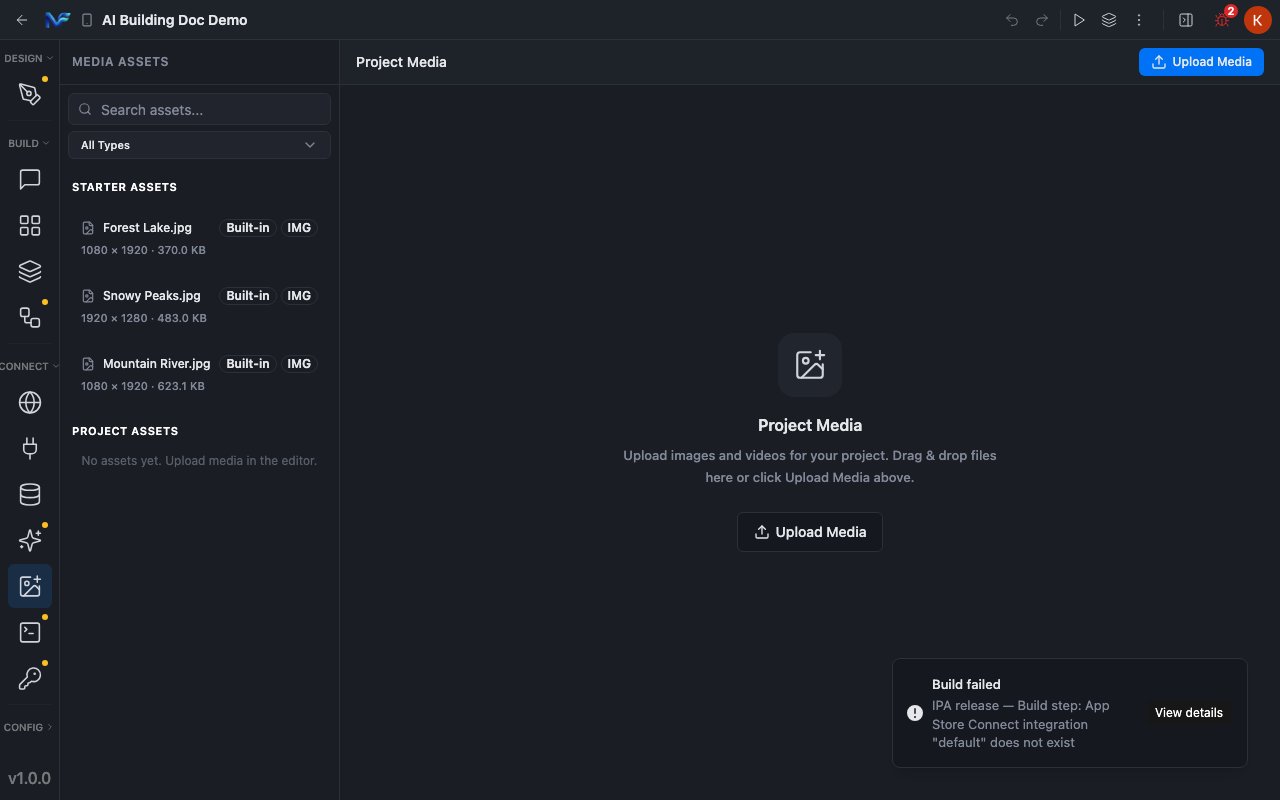
The Media Assets pane: a search box, an All Types filter, three built-in starter assets with dimensions and file sizes, an empty Project Assets section, and an Upload Media button
Selecting each starter asset, switching the type filter, and opening (without completing) an upload.
What ships with every project
Every project starts with three STARTER ASSETS, all badged Built-in and typed IMG:
Clicking a row just selects it — a blue highlight, nothing more. It doesn’t open a preview or place anything on the canvas.
Filtering and uploading
A Search assets… box and an All Types dropdown sit above the list. The dropdown offers All Types, Images, Videos and Animations — this pane is scoped to more than still images, even though a fresh project only has images in it. PROJECT ASSETS, below the starter set, reads “No assets yet. Upload media in the editor.” until you add something. The Upload Media button — both the toolbar copy and the large drop-zone card — opens your operating system’s native file picker.Uploading was confirmed to work, but not completed. The file picker was verified to open (Playwright caught the browser’s own
filechooser event firing), then dismissed without selecting anything, so the demo project’s Project Assets stayed empty. What an uploaded row looks like, and whether drag-and-drop behaves any differently from clicking the button, are both unverified here.